

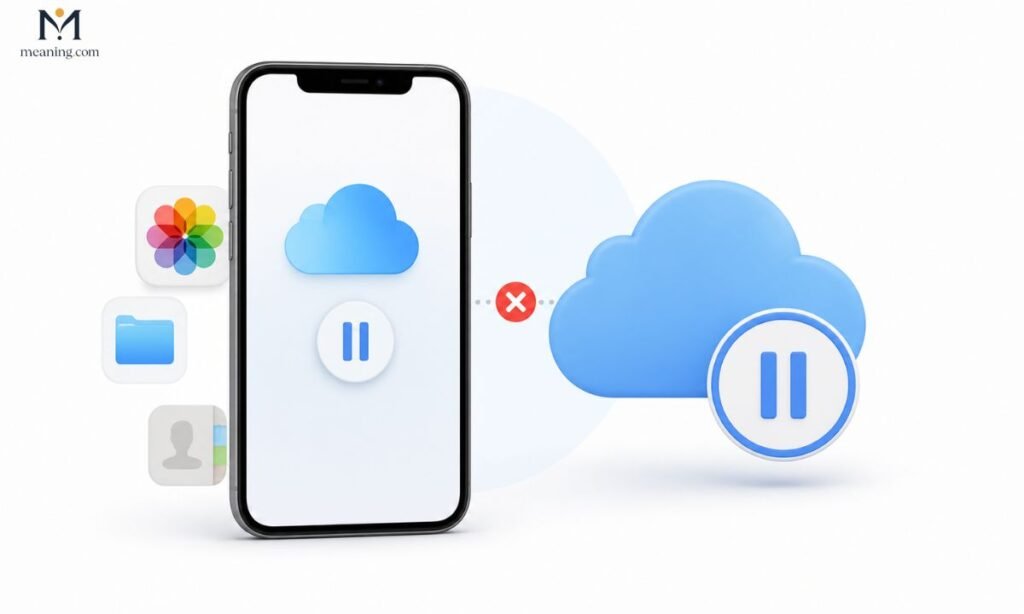
You glance at your iPhone or iPad and spot the message “Syncing with iCloud Paused” sitting quietly in your settings or Photos app. It is easy to panic, especially if you rely on iCloud to keep your photos, messages, and files backed up across devices. The good news is that this message almost always points to something simple, and in most cases, you can fix it in just a few minutes. This guide explains exactly what the message means, why it shows up, and how to get syncing running again.
🧠 What Does “Syncing with iCloud Paused” Actually Mean?

“Syncing with iCloud Paused” means your device has temporarily stopped uploading or downloading data to your iCloud account. Your photos, messages, files, and backups stop updating between your iPhone, iPad, or Mac until syncing resumes.
This is not an error in the traditional sense. Think of it as a protective pause. Your device is essentially saying it is not the right time to sync, usually because of low battery, a weak connection, or limited storage. Once the underlying issue clears, syncing typically starts again on its own, though sometimes it needs a small nudge from you.
While the pause itself is not dangerous, it does mean your most recent data is not being backed up. If something happens to your device before syncing resumes, you could lose whatever was created or changed since the last successful sync.
Syncing with iCloud Paused: How to Unpause
If the message has been sitting there for a while, these steps will resolve the vast majority of cases.
1. Connect to Wi-Fi
A weak or missing internet connection is the most common cause of paused syncing. Open Settings, tap Wi-Fi, and confirm you are connected to a strong, stable network. If the connection looks unstable, try switching networks or moving closer to your router.
2. Turn Off Low Power Mode
Low Power Mode conserves battery by pausing background tasks, including iCloud syncing. Go to Settings, tap Battery, and turn Low Power Mode off. Plugging your device into power often resolves this automatically.
3. Check Your iCloud Storage
Free iCloud accounts come with just 5GB of storage, which fills up faster than most people expect. Go to Settings, tap your name at the top, then iCloud, to check how much space you have left.
4. Restart Your Device
A simple restart clears many temporary glitches. Power your device off completely, wait a few seconds, then turn it back on and check whether syncing resumes.
5. Make Sure iCloud Sync Is Enabled
Occasionally, sync settings get toggled off by accident. Go to Settings, tap your name, then iCloud, and confirm that syncing is switched on for Photos, Messages, or whichever service is affected.
6. Check Apple’s System Status
Sometimes the issue is not on your end at all. Visit Apple’s System Status page and confirm iCloud services show as available rather than experiencing an outage.
7. Update iOS
An outdated version of iOS can occasionally cause syncing problems. Go to Settings, tap General, then Software Update, and install any pending updates.
8. Sign Out and Back Into iCloud
If nothing else works, signing out of iCloud and signing back in often resets the connection. Go to Settings, tap your name, scroll down, and select Sign Out. Wait a moment, then sign back in with your Apple ID.
Why Does iCloud Syncing Pause?
iCloud pauses syncing on its own whenever it detects conditions that would make syncing unreliable or wasteful. Rather than forcing a sync through a poor connection or a nearly dead battery, it waits for better conditions. This protects both your data and your device’s performance.
The most frequent triggers include a weak or absent internet connection, Low Power Mode, insufficient iCloud storage, an outdated iOS version, or a temporary issue with Apple’s servers. In most situations, the pause resolves itself once the underlying condition improves, such as reconnecting to Wi-Fi or plugging in your device to charge.
Syncing with iCloud Paused: Not Enough iPhone Storage
One of the more common causes worth calling out separately is running low on storage directly on your iPhone itself, not just your iCloud account. When your device does not have enough free space, it can struggle to process the files needed for syncing, even if your iCloud storage has room to spare.
How to Fix “Not Enough iPhone Storage”

1. Check Your iPhone Storage
Go to Settings, tap General, then iPhone Storage, to see a breakdown of what is taking up space on your device.
2. Delete Unnecessary Files
Remove old photos, videos, apps, or downloads you no longer need. Even clearing a few gigabytes can be enough to get syncing moving again.
3. Enable Optimize iPhone Storage
Under Settings, your name, iCloud, then Photos, turn on Optimize iPhone Storage. This keeps smaller versions of your photos on your device while storing full-resolution originals in iCloud.
4. Offload Unused Apps
In iPhone Storage settings, enable Offload Unused Apps. This removes apps you rarely use while keeping their data intact, freeing up space without losing anything important.
5. Restart Your iPhone
After freeing up space, a quick restart helps your device recognize the newly available storage and often kickstarts syncing right away.
Why This Happens
Storage issues sneak up gradually. Photos, videos, app data, and cached files accumulate over time, and many people do not notice the problem until backups fail or syncing visibly pauses. Once storage drops below a certain threshold, your device simply does not have room to process new data for iCloud, so it pauses syncing until you free up space.
📱 Where Does This Message Appear?
The “Syncing with iCloud Paused” message can show up in a few different places depending on your device and what you are trying to sync.
- iPhone or iPad Settings, under your Apple ID or iCloud section
- Photos app, often visible near the bottom of your photo library or in the account tab
- Messages app, if message syncing across devices has stopped
- Mac, within System Settings under your Apple ID or in the Photos app sidebar
- iCloud Drive, when files stop updating across devices
💬 7 Common Reasons Why iCloud Syncing Pauses
- Weak or no Wi-Fi connection – iCloud generally prefers a stable network over cellular data for large syncs
- Low battery or Low Power Mode – background syncing is paused automatically to conserve power
- Full iCloud storage – once your account runs out of space, new data cannot upload
- Insufficient device storage – your iPhone or iPad itself may not have enough free space to process syncing
- Outdated iOS version – older software can occasionally struggle with newer syncing processes
- Apple server issues – occasional outages on Apple’s end can pause syncing temporarily
- Account or sign-in problems – an expired subscription or Apple ID issue can interrupt the sync process
🕓 When to Relax vs. When to Take Action
Not every instance of this message requires immediate troubleshooting. Here is how to tell the difference.
✅ Don’t Worry, It’s Totally Normal If:
- Your device is currently on a weak Wi-Fi connection or cellular data
- Your battery is low or Low Power Mode is active
- You just restarted your device or updated iOS
- The message clears on its own within a few minutes
❌ You Should Take Action If:
- The message has persisted for hours or days without resolving
- Your iCloud storage is confirmed full
- Photos, messages, or files are visibly missing across your devices
- You have already tried restarting and reconnecting to Wi-Fi with no change
Quick Reference Table:
| Cause | Quick Fix | Resolves Automatically? |
| Weak or no Wi-Fi | Connect to a stable network | Often, yes |
| Low battery / Low Power Mode | Turn off Low Power Mode, plug in device | Yes, once charged |
| Full iCloud storage | Delete files or upgrade storage plan | No, needs action |
| Low device storage | Free up space, offload unused apps | No, needs action |
| Outdated iOS | Update to the latest version | No, needs action |
| Apple server outage | Check Apple System Status, wait it out | Usually, yes |
| Account or sign-in issue | Sign out and back into iCloud | No, needs action |
🔄 Similar iCloud Messages, What Do They Mean?

A few related messages show up alongside or instead of the standard pause notice, each pointing to a slightly different cause.
- “Paused” with a storage warning – your iCloud storage is full and needs to be cleared or upgraded
- “Poor Network Connection” – your Wi-Fi signal is too weak or unstable to sync reliably
- “[Device] Needs to Cool Down” – syncing paused temporarily to prevent your device from overheating
- “Waiting for Wi-Fi” – syncing is ready to resume as soon as a stable connection becomes available
Frequently Asked Questions
What does “Syncing with iCloud Paused” mean?
It means your device has temporarily stopped uploading or downloading data with iCloud.
Will I lose my data if syncing is paused?
No, but recent changes will not back up until syncing resumes.
How long does the pause usually last?
Often just a few minutes once the underlying issue, like Wi-Fi or battery, is resolved.
Does full iCloud storage cause this message?
Yes, once your storage limit is reached, syncing stops until you free up space.
Can Apple’s servers cause this issue?
Yes, occasional outages on Apple’s end can temporarily pause syncing.
Is restarting my device a real fix?
Yes, it resolves many temporary glitches that cause syncing to pause.
Conclusion
“Syncing with iCloud Paused” looks alarming at first glance, but it is almost always a simple, temporary issue rather than a sign of something seriously wrong. Whether the cause is a weak Wi-Fi connection, a low battery, full storage, or a brief Apple server hiccup, the fix is usually just a few taps away.
Work through the steps in order, starting with your internet connection and battery settings, then moving on to storage and software updates if needed. In most cases, syncing resumes within minutes, and your photos, messages, and files continue backing up exactly as they should.

Ethan Brooks is a content creator and SEO professional with 5 years of experience in search engine optimization, content writing, and website growth. I’m passionate about creating helpful, easy-to-understand content that provides real value to readers and performs well in search engines.